Showing posts with label microsoft error. Show all posts

Sunday, September 30, 2018

Microsfot Office always ask to activate

Office repeatedly prompts you to activate on a new PC


When you install a volume license version of Office Standard or Office Professional Plus on a new PC, you might be prompted with a Let's get started screen each time you start Office. This can happen if you don't uninstall the pre-installed version of Office on your new PC before installing a volume license version of Office.

A screenshot that shows the default try, buy, or activate options for a PC that comes with Office pre-installed.
To stop the prompts for activation, make sure your Office uses volume licensing and then update the registry.

Verify that your Office version uses volume licensing

Volume license versions of Office are typically used by large organizations. Here's how to check if your version of Office uses volume licensing:
  1. Open a document in Word.
  2. Go to File > Account.
  3. Compare your screen to this screen shot and look for the following.

    • Volume license versions are named Office Standard or Office Professional Plus
    • Volume license versions have a Change Product Key link.



If you see buttons named Manage Account or Update Options, you're not using a volume license version of Office.

Update the registry to remove the Office 365 activation prompt

Important: This task contains steps that tell you how to modify the registry. However, serious problems might occur if you modify the registry incorrectly. Therefore, make sure that you follow these steps carefully. For added protection, back up the registry before you modify it. Then, you can restore the registry if a problem occurs.
  1. Close the activation window and all Office apps.
  2. Right-click the Start button Windows Start button in Windows 8 and Windows 10 on the lower-left corner of your screen, and select Run.
  3. Type regedit, and then press Enter. Select Yes when prompted to open the Registry Editor.
  4. On the left side of the Registry Editor, under Computer, navigate to the following key in the registry:
    HKEY_LOCAL_MACHINE\SOFTWARE\Wow6432Node\Microsoft\Office\16.0\Common\OEM
  5. Right click the OEM value and click File>Export.
  6. Save the key.
  7. After the key is backed up, select Edit>Delete.
  8. Repeat steps 3-6 for the following key:
    HKEY_LOCAL_MACHINE\SOFTWARE\Microsoft\Office\16.0\Common\OEM
  9. Close the Registry Editor and start Office again.

Monday, September 24, 2018

How to Enable Typing Slashes in Cells in Excel


By default, the slash (/) key displays the shortcuts to the commands on the ribbon in Excel. So, what do you do if you want to enter a slash in a cell? There’s a way to disable this setting so you can type a slash in cells.
To prevent the slash key from activating the ribbon command shortcuts, click the “File” tab.
On the backstage screen, click “Options” in the list of items on the left. 


 On the “Excel Options” dialog box, click “Advanced” in the list of items on the left.


In the “Lotus compatibility” section, change the character in the “Microsoft Excel menu key” edit box from a slash to a different character, such as a tllde (~) or a grave accent (`). Make sure the character you choose is one you won’t be using in the cells.
Click “OK” to accept the change and close the “Excel Options” dialog box.

Now you can type a slash in any cell in your worksheet.


Again, the character you entered as the “Microsoft Excel menu key” is not available to type in the cells.

Sunday, July 16, 2017

How to Fix Microsoft Windows Search Indexer Stopped Working and Was Closed

“Microsoft Windows Search Indexer stopped working and was closed”
or
“Windows could not start the windows search service on the local computer error 1067”
There are a couple of things you can try out to fix this annoying as heck problem in Vista:

Rebuild Windows Vista’s Search Index

This method is quick and easy, but may not work if you are having serious issues. Still it’s worth a shot before going to the other steps where you have to delete stuff.
First, type Indexing Options in the Start Menu’s search box in Vista. Click on the Advanced tab and then click Rebuild.
windows search indexer
You can also try clicking on Restore Defaults if Rebuild does not work. If for some strange reason you are not able to select anything on this page, you can rebuild the searcher index manually by editing the following registry key:
HKLM/Software/Microsoft/Windows Search/SetupCompletedSuccessfully
to zero and then restarting the machine. However, if you can avoid registry key modifications that’s best! Also, make sure to create a restore point before making any registry edits.

Delete the Windows Search Index Program Folder

If the above method did not work, you can try to delete all of the files associated with search indexing in Vista by deleting everything inside these folders:
C:\ProgramData\Microsoft\Search\Data\Applications\Windows
C:\ProgramData\Microsoft\Search\Data\Temp
If you do not see these folders, you need to turn on viewing for hidden folders by going to Windows Explorer or My Computer and then choosing Tools, Folder Options. Go to the View tab and scroll down till you see “Show hidden files and folders“. You should now be able to see the ProgramData folder.
Again, make a backup of the files in the directories before deleting them just in case, but they really are not that important. If you get an Access is Denied message when trying to delete the files, you will first need to stop the Window Search Index service by going to Control Panel, then Administrative Tools, and then clicking on Services.
The service should be called Windows Search or Windows Searcher. Double click on the service and click Stop.
windows search service
After you delete the files, restart the computer and the index will be rebuilt and hopefully your error will be gone!
Hope that helps someone with a very annoying error! Remember the search index service is not critical, so you’re not going to mess up your computer by disabling the service or deleting it’s files.

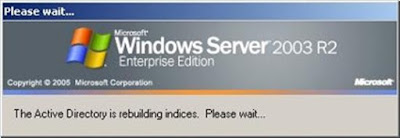
The active directory is rebuilding indices please wait...

Problem Error "The active directory is rebuilding indices please wait” in Windows Server 2003. Operating system Windows 2003 server...