Showing posts with label trust center. Show all posts

Tuesday, November 6, 2018

How to enable/disable Protected View in Office 2016 Word/Excel/PowerPoint

An Office document that opens in protected view mode can’t be edited. If you trust the source of this document, just need to click the Enable editing button to remove the "Protected view" so that you can edit the document. However, this is temporary. Next time you open a Word document, it will still open in protected view mode. To permanently disable "Protected View" in Office 2016, do as follows.

Step 1: Open one already existing Office document, such as Word. Or create and open a new Office document.

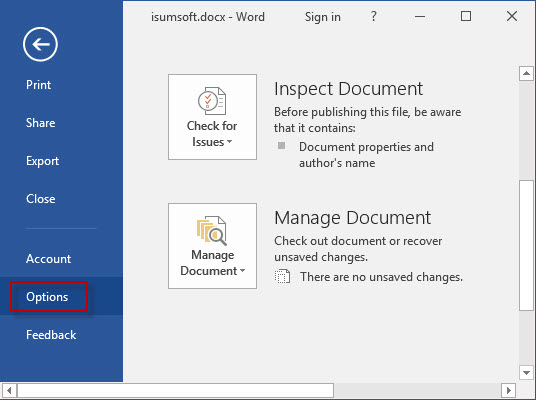
Step 2: Select the File -> Options tab.


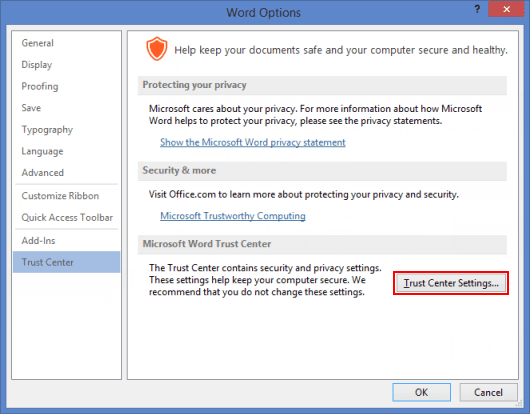
Step 3: After the Word Options dialog opens, select Trust Center on the left-side pane, and then click Trust Center Settings button on the right-side pane. 


Step 4: After the Trust Center dialog opens, select Protected View. "Protected View" is enabled by default. To disable it, uncheck the boxes next to the corresponding items and click OK. If you want to disable "Protected View" in Excel/PowerPoint 2016, the steps are the same.
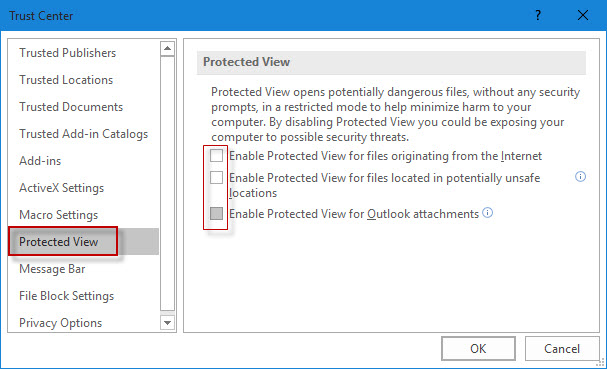


Then you won’t be prompted with the Protected View warning next time when you open an Office file downloaded/received from the internet or other location.

Tips: "Protected View" is actually one very useful feature to secure computer system from potential dangerous programs/files. Once a Word/Excel/PowerPoint document is received from the Internet or other places, Office program will detect it. Once potential safety problems are found, Office will open the document in an environment isolated from the computer system, which is just the "Protected View". This prevents the virus or malware running on your computer. Hence, You are not recommended to disable “Protected View” feature in Office 2016/2013/2010 unless you are pretty sure you won’t open any potentially unsafe Office files or you’ve installed anti-virus software on your computer.


source: https://www.isumsoft.com/office/disable-protected-view-in-office-2016.html

Sunday, December 3, 2017

Microsoft Excel cannot open or save any more documents because there is not enough available memory or disk space


Microsoft Excel cannot open or save any more documents because there is not enough available memory or disk space. To make more memory available, close workbooks or programs you no longer need. To free disk space, delete files you no longer need from the disk you are saving to.
This is really annoying especially you have tones of space and memory available.If you tried this and still not working:
Right click on the saved file, click on Properties and uncheck the option Block and then try to open the file and check.
And also did some setting in the trust center still not working, try the following.

To resolve this problem, start the Windows Firewall service:
Press the Windows logo key+R (to open the Run dialog box).
Type services.msc, and then click OK.
In the Services window, right-click Windows Firewall, and then click Start.


I know Windows Firewall suxk and we always disable it when we first got the PC/Laptop, but this trick, fixed my problem and I got my excel file to open. 


Yes, I don't understand neither.

The active directory is rebuilding indices please wait...

Problem Error "The active directory is rebuilding indices please wait” in Windows Server 2003. Operating system Windows 2003 server...